The Time Machine Icon Is Not Proof: Test Your Backup with a Small Restore
After completing the Time Machine installation on Mac, check the last backup time and sample file. Do not skip disk deletion and encryption details.
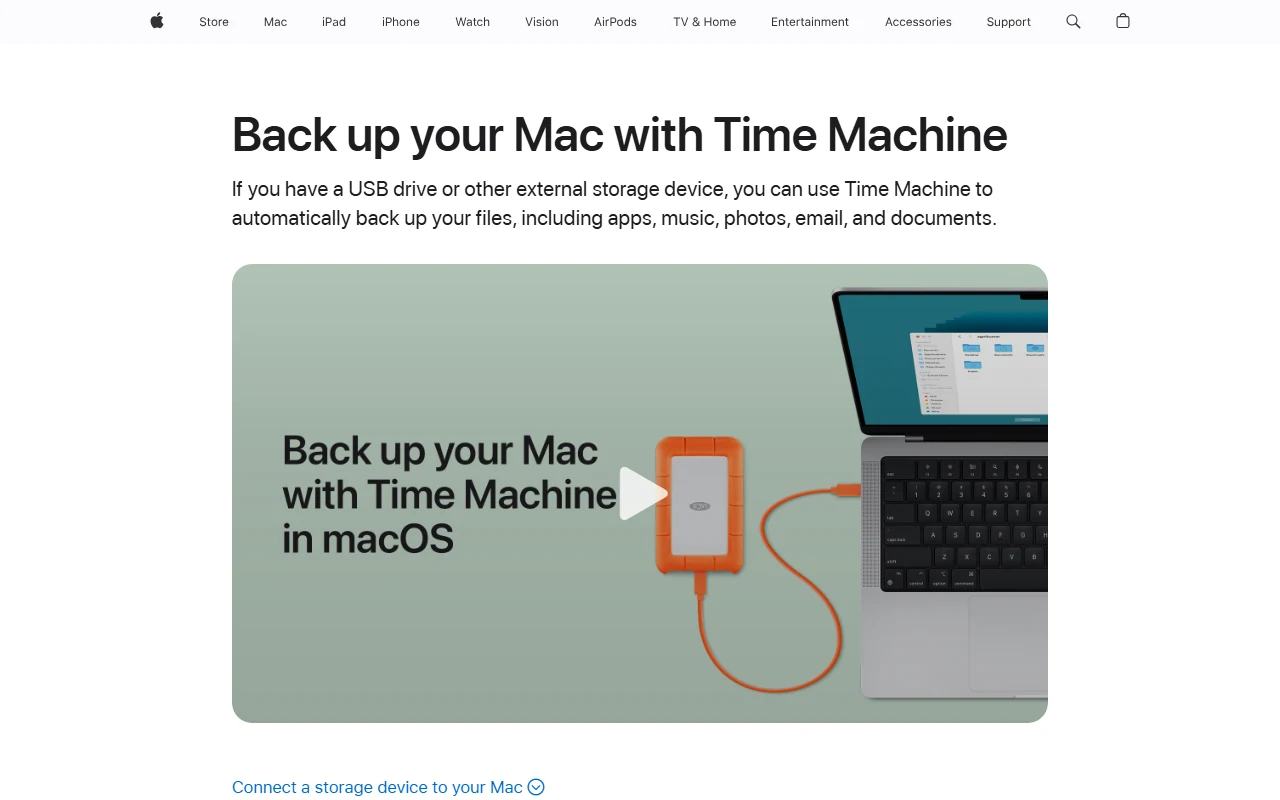
The fact that the backup disk is on the table does not indicate that your last work is in it. The time machine icon appears on the menu is not proof that the final process has been successfully completed. To install a available backup layout, you need to select the right disk, read the completion state, and try back access with a small file.
Don't rush when choosing a disc
Apple's Time Machine guideIn macOS Ventura 13 and later, System Settings ⁇ General ⁇ Time Machine explains the path. Check the name and capacity of the disc on the screen when adding the backup disk. The process may request that the disk be deleted; if there is data to be protected, stop without confirming this warning and create a secure copy.
Don't rely on lone name similarity if multiple external discs are connected. Separating which disc to use for what purpose with a physical tag can also make your job easier. This tagging is not a technical requirement, but a practical layout proposal that reduces the risk of choosing the wrong disk.
Think along with the plan to recover encryption
If you choose to encrypt the backup, you need to protect the password for back-up. Keeping the password inside the Mac you're backing up alone can be a problem when that device is not accessible. Check that your own secure password management method also has backup disk access.
It is not the right solution to overwrite the password or store it on a public note. Evaluate access security together with ease of use. It should also be determined from the beginning who will access the backup on the common computer.
Read the last completed process
Apple explains that manual backup can be started from the Time Machine menu and the last backup status can be checked. Do not disconnect the cable before the initial operation is complete. If you have been using a portable computer for a long time, take into account how long the disk has not been connected.
Have the status of the last successful date, disk name, and important work folders in your own note. If there is an error message, don't skip it 'probably worked'. Study the settings for disk capacity and scope; don't assume everything is backed up without knowing which folders are excluded.
Test with a harmless file
Prepare a small trial document instead of an important customer file. Once the backup is complete, find a record of that file from within the Time Machine and find out about the retrieval process. Make sure you don't unintentionally overwrite your original file in the trial; evaluate the separate location or copy option where necessary.
The goal is not to create real data loss, but to create a process that you won't see for the first time in the moment of need. This control does not guarantee the faultlessness of the entire disk. It still gives a more concrete answer than relying on a lone icon: can a particular file really be opened from a backup at a given date?
Resources
- Apple - Backup Mac with Time Machine · 6 October 2026