RAM or SSD? Choosing an Upgrade for a Slow Computer
RAM is the workspace, storage where SSD files are kept. Separate the need for memory and storage instead of getting random parts when the computer slows down.
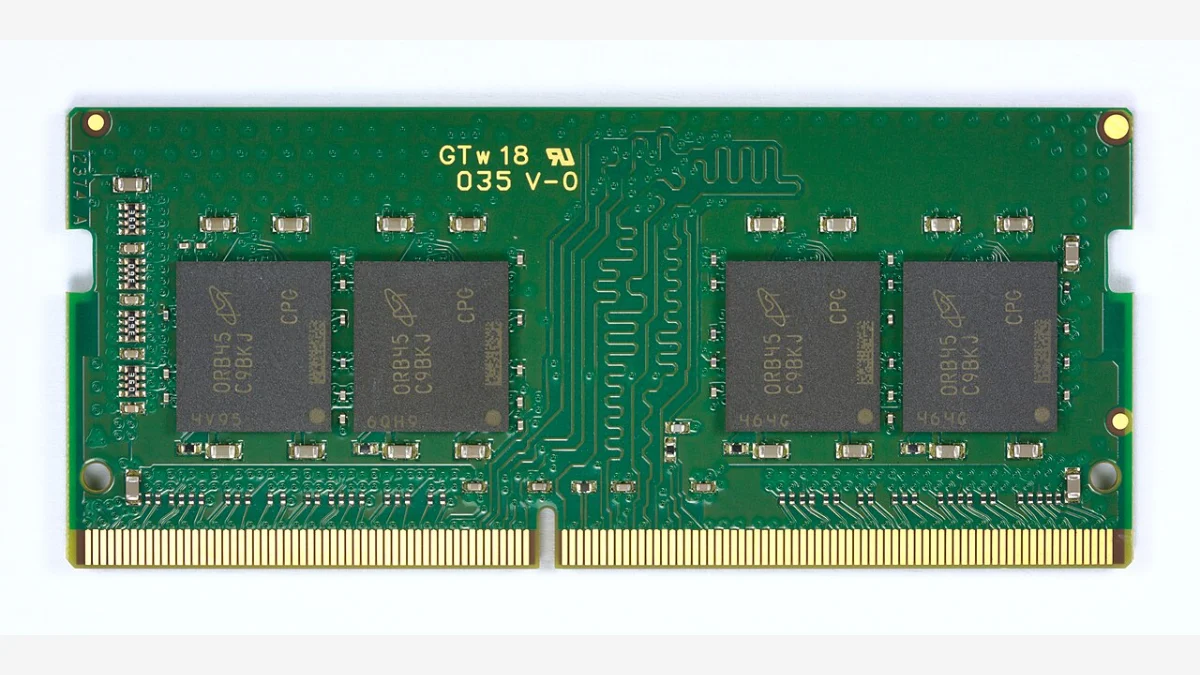
When the computer slows down, the first question should not be "What piece do I take?" but "What process am I waiting for?". It is not the same problem that there is no place in the browser to store large files with the compression when opening a large number of tabs. RAM and SSD therefore cannot be replaced.
What does RAM and storage do differently?
In Crucial's technical description, RAM is defined as short-term space for the data that the computer is running at the time. When power is cut, its content is not kept permanently. Storage also stores files and applications when the computer is turned off. Memory and storage difference
Think of RAM as the table you are working on with an analogy, the SSD as the cabinet where you remove files. The larger cabinet does not automatically expand the top of the table. The larger table does not make new room for the files in the cabinet. This analogy is not a technical measurement; it describes why you should evaluate the two capacities separately.
Describe the problem in a sentence
Instead of "computer slow," write an example from your daily job: "I'm waiting when I get back to the browser when I'm editing video" or "I can't find space on the disk for a new project." Then note when the problem starts.
This note is also useful when you are interviewing the service. Instead of an unmetered percentage or a random upgrade proposal on the Internet, you have a repeatable workflow. The ability to compare the same work before and after you try it makes the purchase decision more meaningful.
Check the disk load for free first
Microsoft states that lack of storage space can affect performance and the installation of Windows updates. Free space from the "This computer" section in the File Explorer; you can check which files use the space from the Storage section within the Settings. Microsoft storage guide
The approach we propose here is not to delete files immediately. Recognize large files first, back up the necessary ones, separate those you decide are unnecessary. If you don't understand the name of a folder, don't remove it just because it looks big.
Confirm pre-upgrade model compatibility
A computer's brand name alone is not enough information. Check the full model code, manufacturer's service document, and supported upgrade options together. Separate support for the upgrade before ordering parts.
It wouldn't be right to give everyone the one number that fits for the amount of RAM or SSD capacity. With one person's text and browser business, another person's big video project doesn't generate the same need. Evaluate your current job, budget, and retention habits together.
How can you summarize the decision?
If you have a disk space problem, first examine storage; also evaluate memory usage if you are struggling during concurrent work. See these as the beginning of research, not as definitive diagnosis. It may not yield the result that you expect to raise the wrong piece when you have heat, software, or any other component problem.
This article does not offer speed testing done on a particular computer. The goal is to allow you to decide by "appropriate intervention to the right problem" rather than "more parts".
Visual and verification note
Cover: D-Kuru · CC BY-SA 4.0. WebP conversion and resizing; used within the 16:9 floor without cropping the image. Use and adaptation rights of the image are subject to the license specified; the same license is not claimed for the entire article.
This guide was prepared on 6 October 2026 on the basis of the official support/technical documents linked above. It is an artificial intelligence-supported editorial compilation; it is not presented as a personal product test or measurement in the field.
Resources
- Crucial - Difference Between Memory and Storage · 6 October 2026
- Microsoft - Free up drive space in Windows · 6 October 2026