Muting Notifications Is Not Enough: Check Samsung and Xiaomi App Permissions
With the app warning you, access to the camera, microphone, or location are different permissions. Review unnecessary access with Samsung and Xiaomi examples.
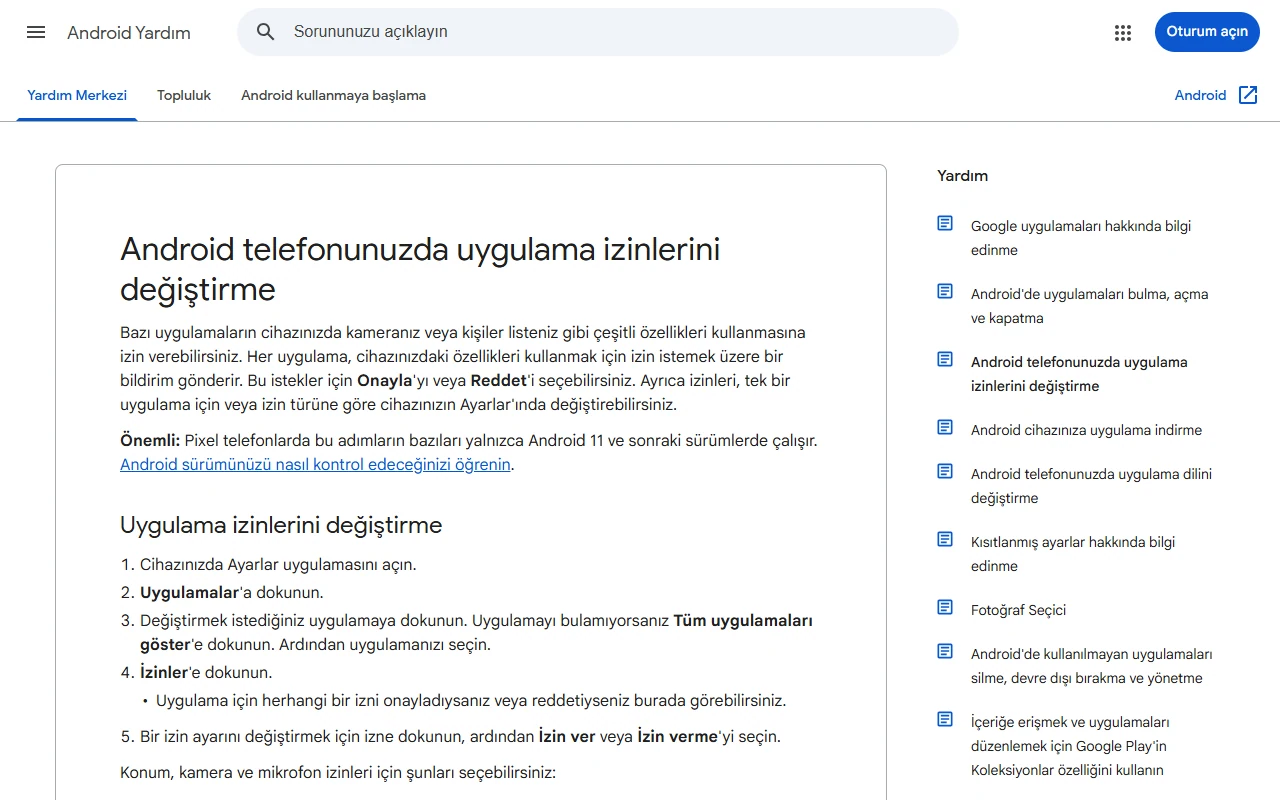
Shutting down an application's notification does not mean that you also turn off its location or microphone access. Notifications regulate what will appear on the screen, and access permissions regulate what data and features the app can use. When simplifying your phone, you need to do these two controls separately. The following method is based on official statements from Samsung and Xiaomi; the menu names may vary depending on the model and software version.
Start with a single application first
Choose an application that sends the most notifications, not the one that you are unsure of what access you have. Think about what work you are using. Taking photos, finding the service near you, and reading news alone does not create the same need for access. However, do not decide on the name of the application alone that a permission is unnecessary; see which function it is requested for.
You can type the application name, access type, current selection, and the function you use in your own control note. This simple record makes it easy to understand which change affects the result after changing a few settings. Do not add account information or private messages to such a note.
Find the permission manager on Samsung
Samsung's Help Statement In the Applications section in Settings, you are told to access the permission manager. You can evaluate the options offered by selecting the type of access involved and then the application. Some permissions have preferences such as asking or allowing each time during use; not every permission offers the same options.
Do not confuse the decision to mute in the notification section with the decision on this screen. A location-dependent feature may not work when you limit the location. The goal is not to close all permissions without thinking, but to select appropriate access to the function you are using.
Follow your model's path at Xiaomi
Official guide to Xiaomi 14T, Settings ⁇ Security and privacy ⁇ Privacy ⁇ Permission manager shows the way. Applications ⁇ An alternate path is also explained that can be accessed through permissions. Do not read these steps as a guarantee that all Xiaomi models will have the same screen.
If you can't see the title you're looking for, use the term permission or privacy in the setting search; don't turn off random system services. When you select the application, examine accesses such as cameras, microphones, contacts, and locations separately. Having a permission on is not evidence alone that it is being used at all times.
Try the real job after the change
Once you have changed a setting, try what you normally do in the app. For example, camera access is expected to be required for a video call. Reassess only the relevant permission if there are problems; do not open all permissions collectively.
This control is not a malware scan or complete security audit. Keep the operating system and applications up-to-date through official channels. The most useful result is not to memorize every setting on the phone, but to be able to explain why you give access to which application.
Resources
- Samsung - Application notifications and permissions · 6 October 2026
- Xiaomi - Xiaomi 14T app permissions · 6 October 2026