Not All USB-C Cables Do the Same Job: Charging, Data and Displays
Two USB-C cables with the same end can carry data at different speeds or may not display to the monitor. Check power, data and image support separately before purchasing.
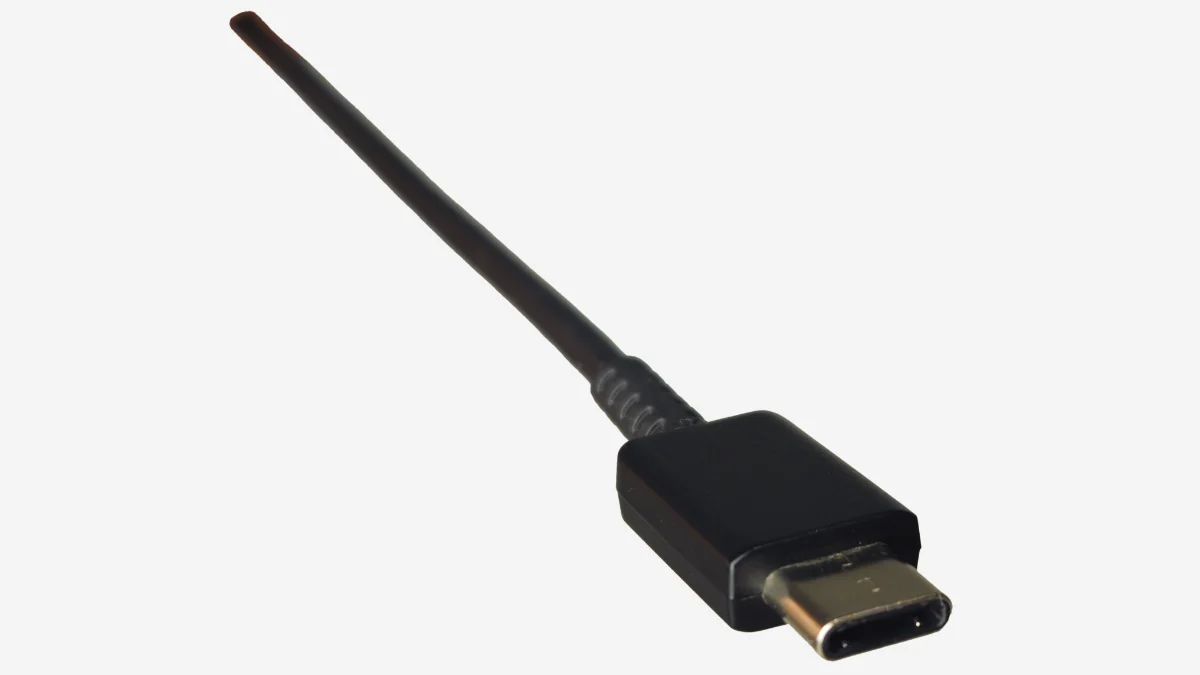
When you plug the USB-C cable into the computer, the phone is charged but the monitor is not receiving images. This alone does not indicate that the cable is broken. It is necessary to think of the connection as three separate jobs: transferring energy, moving files and transmitting images. Seeing the same end format does not prove that all three are supported at the same level.
First determine what you expect from the cable
If you're going to use a cable only to charge the phone at night, it's not the same as when you're copying large video files to the external SSD. Connecting the laptop to the monitor with a single cable also adds image and sometimes power transfer. Start shopping from the product name, not the job you want to do.
Prepare a short need note: which device, what port, what accessory, and what job? For example, "video transfer from laptop to external SSD" is clear enough. "Best USB-C" makes comparison difficult.
Do not confuse data speed with Watt
In USB-IF's certification program, power signs for USB-C-USB-C cables are defined as 60 W or 240 W. The data speed supported on the appropriate cables is also shown separately; there are exceptions for USB 2.0 cables to mark data speed. These marks remind us that data performance with energy capacity is different information. USB-IF description
So don't expect high file transfer speed by seeing only "240 W". If speed information is not provided on the product page, ask the vendor or open the manufacturer's technical document. If a feature is not written, it is a more accurate comparison to leave it uncertain instead of accepting it exists.
Check the entire connection chain for the monitor
Microsoft emphasizes that in USB-C display problems, the computer, screen and cable must support the appropriate alternate mode. If the computer has more than one USB-C port, its features may not be the same. The adapter or connection station is also part of the chain. Microsoft troubleshooting guide
As a control order, first open the computer's model page, then the input properties of the screen, finally the cable or adapter's document. Instead of "USB-C exists", ask the question "Does this port support image output?" Don't expect to get an unsupported hardware feature by installing a random driver.
Don't blame the lone adapter on slow charging
According to Microsoft's guide, for fast charging, the computer, adapter, and cable must support appropriate standards and power levels together. Connecting to the wrong port, insufficient power, or an interconnection station can also be effective. First refer to the connection layout given by the device or recommended by the manufacturer.
Change the single variable in trials: first the port, then the known compatible cable, then the appropriate adapter. If you change the three at the same time, you won't know which part the problem is caused by.
Short control before purchase
Record the manufacturer name and model code. Compare power, data speed and image support in separate lines. Check the cable length and port properties of the device you will be using. Do not substitute the "professional" or "fast" expression in the sales title for the technical feature.
This guide is not a product review; it does not claim that we physically test a particular cable. The goal is to read the information in the product document with the right questions.
Visual and verification note
Cover: Deergirl · CC0. WebP conversion and resizing; used within the 16:9 floor without cropping the image. Use and adaptation rights of the image are subject to the license specified; the same license is not claimed for the entire article.
This guide was prepared on 6 October 2026 on the basis of the official support/technical documents linked above. It is an artificial intelligence-supported editorial compilation; it is not presented as a personal product test or measurement in the field.
Resources
- USB-IF - Cables and Connectors · 6 October 2026
- Microsoft - Fix USB-C problems in Windows · 6 October 2026