Choosing a Tablet Stylus: Check Compatibility, Not Just Screen Size
Check model, generation, software, matching and charging differences when selecting a digital pen for the tablet. Practical compatibility guide for note taking and drawing.
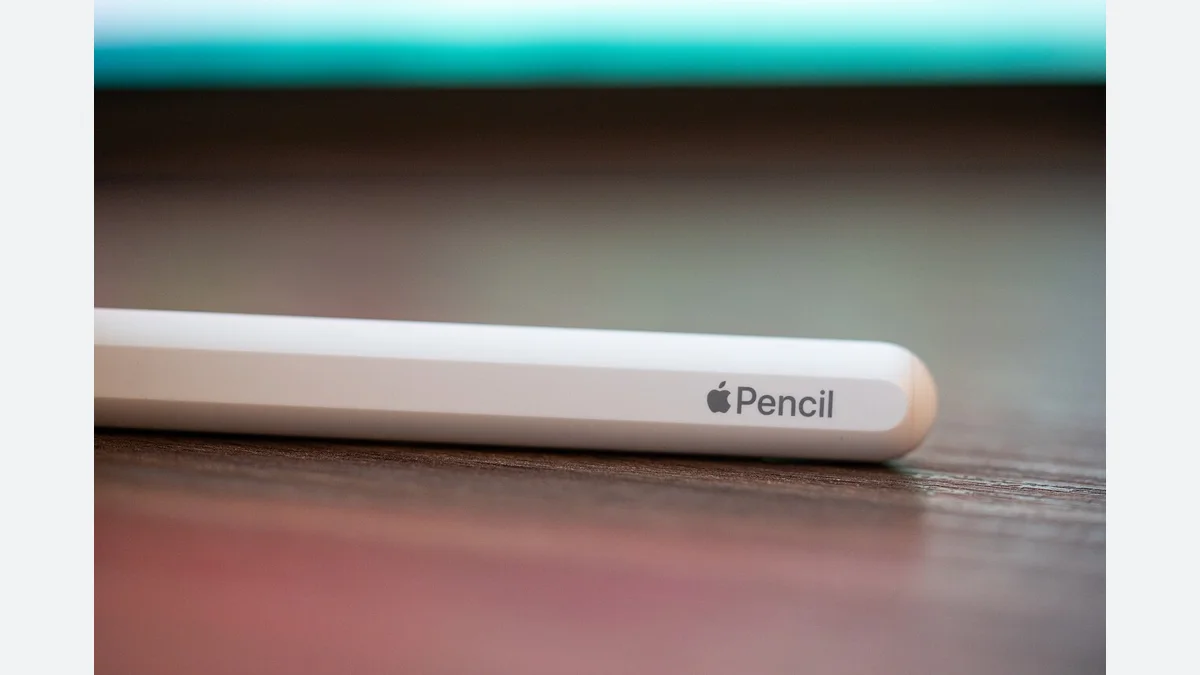
It's easy to assume that because a pen is magnetically holding on to a tablet, it matches it or recharges it. What needs to be looked at before purchasing is not just the screen size; it's the full model of the tablet, the generation of the pen, and the method of connection. Matching these three information is a better start than switching accessories later.
Start with the full model name
Do not settle for generic phrases such as "Pro", "Air" or screen size in the tablet ad. Find the full model of the device in the settings section or on the manufacturer's model determination page. Then type the full name of the pen. Adding two products to the same shopping list does not confirm that they are technically compatible.
Apple's compatibility page has separate iPad lists for Pencil Pro, USB-C, second generation and first generation. Some matches have operating system requirements, some have adapter notes. Therefore, it should be based on your tablet being clearly on the relevant list rather than the "iPad compatible" article. Check the list at the time of purchase; this post does not replace a fixed all-models table.
Separate magnetic storage, charging and matching
The technical page of the Apple Pencil USB-C explains that the pairing and charging are done by USB-C cable; magnetic grip is meant to be stored. It is an important detail in accessory comparison, since there may be different functions of a similar motion in appearance. Do not automatically move the method of another pen to the USB-C model or to a different tablet.
Prepare a control line: "Where does the pen hide, how does it charge, how does it connect for the first time?" Note also the parts you expect to come out of the box. Also verify if this comes with the product if additional parts are needed in the installation.
Drawing by taking notes is not the same attempt
The short essay I propose is first written a small paragraph, then marked a line on the PDF, and lastly different lines are tried in the drawing application to be used. Not every user's priority is the same. Writing down the features that are important in your business first prevents decision making by being influenced by the promotional video alone for a function you don't need.
Check the descriptions of the pen and application separately if the pressure or slope behavior is important in the drawing. Seeing a nice line in a quick promotional video does not mean that the same behavior is confirmed in the application and version you will be using. You can separate the notes as "there is", "no" and "yet unverified".
Try a small file stream as well
Evaluate the tablet not only when writing on the screen, but also when finishing the job. Export a note or sample PDF you have created; open the file on the computer you are going to work with. Are the pages in the right order, the markings visible, the file name understood? These are control questions for your workflow, not product score.
After all, good pen selection is not just the "newest model" choice. First comes documented compatibility, then small trials that you will make in your actual use. This article is not a physical product test; it is a guide to avoid shopping on the assumption of a false model or false connection.
Visual and source note
Photo: Tony Webster from Minneapolis, Minnesota, United States.jpg) ⁇ CC BY 2.0. 16:9 fit into the ground; sizing and WebP conversion; subject not cropped. The license of the photo is related to the visual; the writing was originally prepared.
Resources
- Apple - Apple Pencil compatibility · 6 October 2026
- Apple Pencil USB-C - Technical specifications · 6 October 2026
- Cover photo and usage license · 6 October 2026